Try it live
See the real app before you talk hardware.
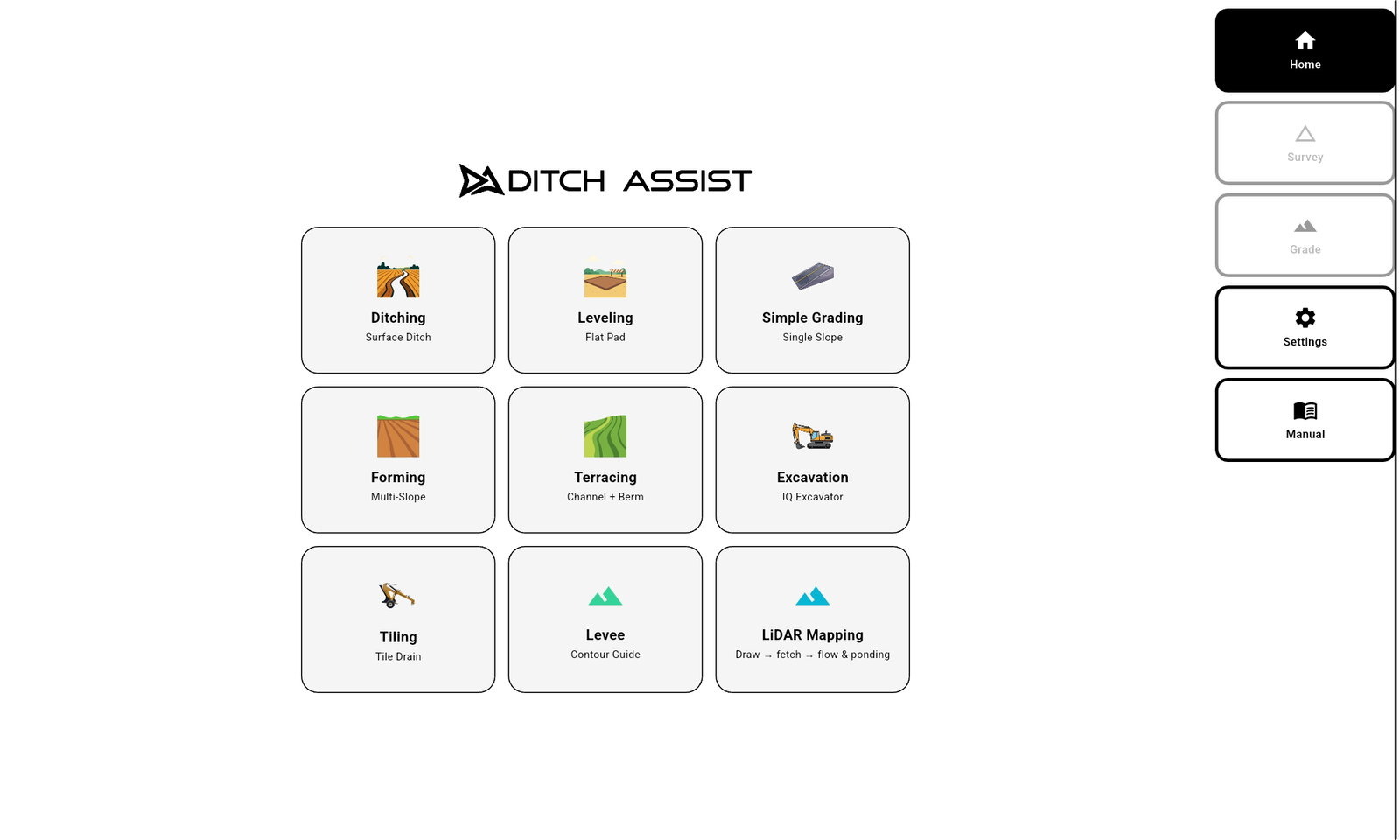
Click through a live browser build of the Ditch Assist app — real screens, real workflows, no login and no hardware required.
Ditch Assist® app manual in three languages, Ditch Assist and DIG™ installation manuals, direct Android app downloads, install help, and support from people who know the system.
New to Ditch Assist? See what the system is →
Start with a text question. Voice and camera are optional beta features and start only with your consent.
Open AI Support →Download the Ditch Assist Android app. App updates are included with the system.
Download →Quick checks for RTK fix quality, GPS/NMEA wiring, calibration, and hydraulic response.
See common fixes →App setup and preflight checks first, then a step-by-step walkthrough for each mode you run.
Watch videos →Open saved jobs, surveys, designs, field folders, and session logs locally in your browser. Nothing is uploaded from your computer.
Open viewer →1-833-DITCH-AS · support@ditchassist.com
Manitoba office, Monday to Friday, 8 a.m.–5 p.m. Central. Local dealers help after hours.
Use the Ditch Assist app manual for app screens and workflows. Use the Ditch Assist hardware install manual for the Full Automation Kit and Guidance Only Kit: control modules, harnesses, valves, and GPS wiring. Use the DIG manual for excavator and backhoe installation, calibration, and operation. Ditch Assist Lite needs no install manual: only a GPS on the implement, no wires. The receiver setup guide has the settings any RTK receiver needs, then the RTK base, the Ditch Assist rover and the Ditch Assist Lite rover step by step.
App screens, operating modes, calibration flows, job setup, and field workflow in English, Spanish, and Portuguese.
Open app manual →Control module mounting, harnesses, hydraulic valves, GPS wiring, bypass circuit, and implement installation steps.
Open install manual →Excavator and backhoe sensor mounting, GPS setup, calibration, saved machine profiles, and field operation.
Open manual →The NMEA settings any RTK receiver needs, then the RTK base, the Ditch Assist rover and the Ditch Assist Lite rover, programmed from the app or set by hand.
Open setup guide →Three walkthroughs on the kits page: the Full Automation Kit unboxing, a scraper installation, and the setup flow used before field work.
See the control module, harnesses, tablet mount, hydraulic valve package, hoses, fittings, and install hardware laid out and explained.
Watch unboxing →Review how the control module, valve, harnesses, and GPS fit on a scraper, and how the bypass circuit keeps your tractor remotes working for manual control.
Watch scraper install →Use the setup walkthrough to review controller connection, app startup, preflight checks, GPS status, and mode selection.
Watch setup →Most field issues trace back to one of four things: RTK fix quality, GPS/NMEA wiring, a stale calibration, or hydraulic response. Start here, then open the full manual section for the complete fix.
Fix quality bouncing between RTK and Float or GPS Fix usually traces to the GPS setup (sky view, base distance, corrections, or receiver power) — the app pauses automated control until RTK recovers, so grading stops until it clears. Check for a clear sky view with no obstructions around the antenna mount, confirm you are not too far from your base station, watch for cellular correction dropouts or latency, and, on an implement kit, check that the fuses are pushed in on the Ditch Assist power harness (it feeds the control module, which powers the GPS) and that the harness runs straight to the tractor battery with a solid connection. A loose radio or receiver board inside the antenna after rough ground can also cause it.
Full RTK fix troubleshooting →If GPS/GNSS information does not populate right after connecting, confirm the tablet is on the Ditch Assist control module Wi-Fi and not another network. Then check the receiver: it needs GGA and VTG NMEA messages enabled at 5 or 10 Hz, baud rate set to 38,400, and every other message turned off. The module's STATUS 2 LED blinks when any data arrives from the receiver, so blinking means the cable and output work, not that the settings are right — if it is not blinking, nothing is reaching the module. On a DB9 serial connection, a Tx/Rx pin swap on the GPS connector is a common fix. Ditch Assist Lite has no control module: check that the tablet is on the receiver's own Wi-Fi hotspot and that Mode is set to Ditch Assist Lite in Settings. The receiver's position output is on by default; if someone turned it off, Settings → Emlid Diagnostics in the app sets it back.
Full GPS and NMEA connection troubleshooting →On implement kits and Ditch Assist Lite, re-check Blade Height in the Survey settings: how high the cutting edge sits above the ground with the implement raised in transport position. The app subtracts it from each survey point, so a wrong number shifts the survey and every design built from it. Auto Measure sets it for you: GPS reading with the implement up, minus the reading with it down on the ground. Calibrate the benchmark with the cutting edge on the ground, and calibrate again if your RTK base is moved or restarted. Keep tilt constant from survey through grading on tilt-capable blades; changing it mid-job shifts the GPS height offset and throws off grade. On DIG, angle and link-length calibration needs to be redone any time a sensor, the GPS pendulum mount, or a pin is removed and reinstalled. With Ditch Assist Lite in Excavator mode there are no angle sensors, so grade reads correctly only when the stick and bucket are back in the same position each time.
DIG calibration procedure →Start with the basics: hydraulics in constant flow and not float, tractor flow turned up, no popped couplers, and no leaking fittings. Then test Raise and Lower in Pre-Flight Checks: if the implement will not move there, the cause is hydraulic or electrical, not a valve setting. If Raise and Lower work but the implement waits or crawls in automatic grading, check Min Valve DC and Max Valve DC under Settings → Controller in the app. They are valve power in tenths of a percent (500 = half power), and they only affect automatic grading. Raise Min Valve DC about 25 at a time until the implement starts promptly, tap Apply, then stop and start automatic grading so the control module uses the new value. Raise Sensitivity and Lower Sensitivity only change the manual Raise and Lower buttons. A closed-center valve on an open-center tractor will not work either — contact Ditch Assist support if that is the setup.
Full hydraulic response troubleshooting →Click through a live browser build of the Ditch Assist app — real screens, real workflows, no login and no hardware required.