Quick start
Levee & Contour Guidance chapter of the Ditch Assist app manual. The same text is in the app under Manual.
In the app Manual › Levee & Contour Guidance › Quick start
From the Home screen to driving a contour:
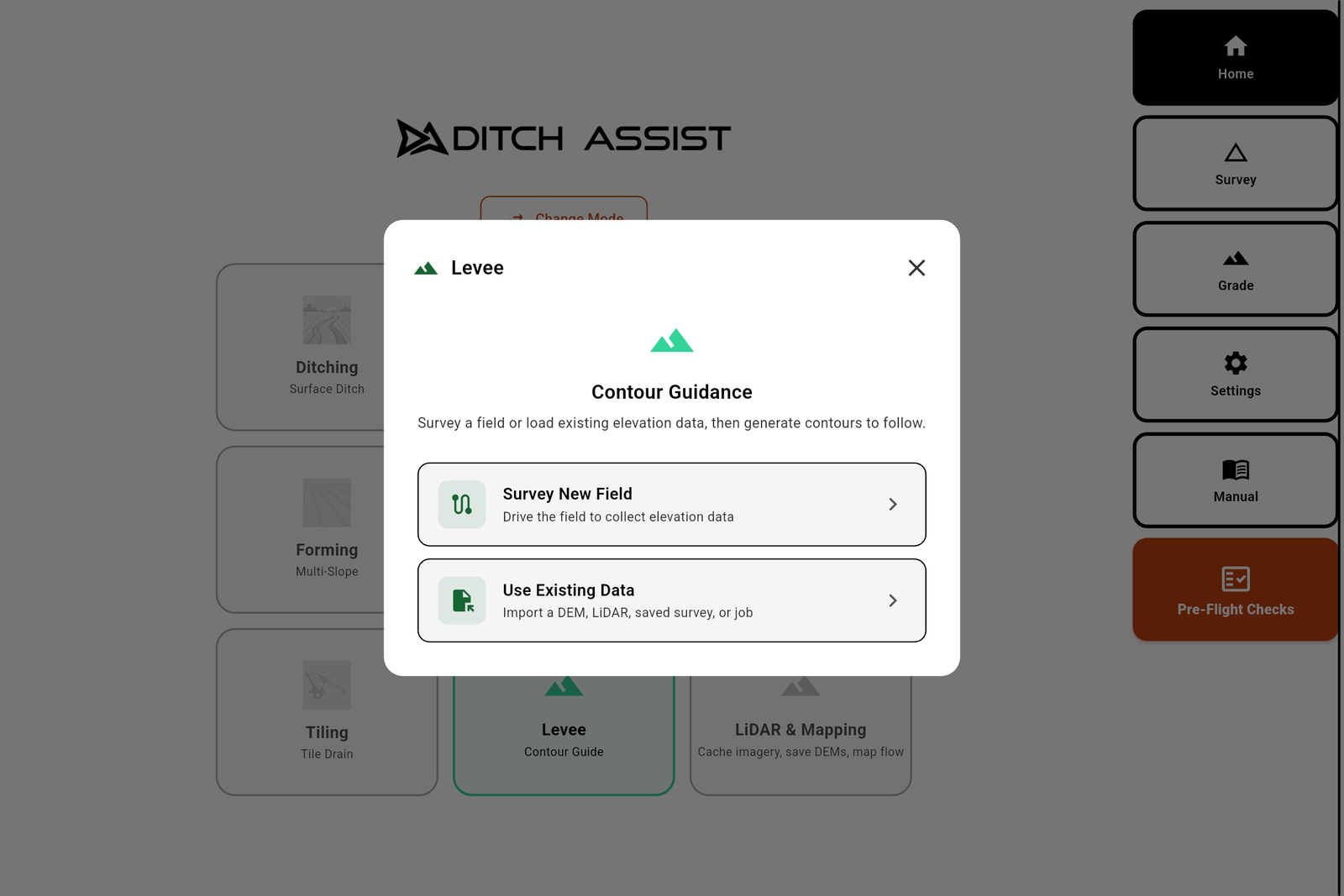
- Tap the Levee card. The wizard offers two paths:
- Survey New Field — drive the field to collect elevation data yourself.
- Use Existing Data — open the Levee screen and pick a data source (GeoTIFF, LiDAR, saved survey, point file, or a saved job).
If you chose Survey New Field, the Field Survey screen opens. Drop a benchmark, tap Start, and drive the field back and forth to cover it. Tap Finish & Save when done, then choose Save & Use Now to go straight to contours.
If you chose Use Existing Data, the Levee screen shows a panel of sources in the center: Survey New Field; then under Or use existing data — Saved Survey, Point File, GeoTIFF DEM, Saved LiDAR DEM, Open LiDAR & Mapping; then under Continue previous work — Load Saved Job.

The app offers a field boundary. If it traced one for you, tap Use this boundary, or Draw your own, or Skip. The boundary keeps contours inside the field.
Set the contour interval (how far apart the contours are in elevation) and tap Generate. The app builds the elevation surface, then draws the contours on the map.

- The contours appear, colored by elevation. Tap Select Nearest in the sidebar (or tap a contour on the map). The chosen contour turns orange and the lightbar appears across the top.

- Drive along the contour. The lightbar lights up on the side you have drifted to; the arrows on the map point the way to steer back. Tap Start in the sidebar to record your coverage as you build, and Save Job when you want to keep it.
Did this answer your question?
Thanks. That tells us which pages to improve.
Still stuck? Talk to a product specialist. 1-833-DITCH-AS · support@ditchassist.com · Monday to Friday, 8 a.m.–5 p.m. Central.
Calling about a problem? Send your app logs first so support can see what happened.