Quick start
Land Forming chapter of the Ditch Assist app manual. The same text is in the app under Manual.
In the app Manual › Land Forming › Quick start
Five steps from card tap to moving blade:
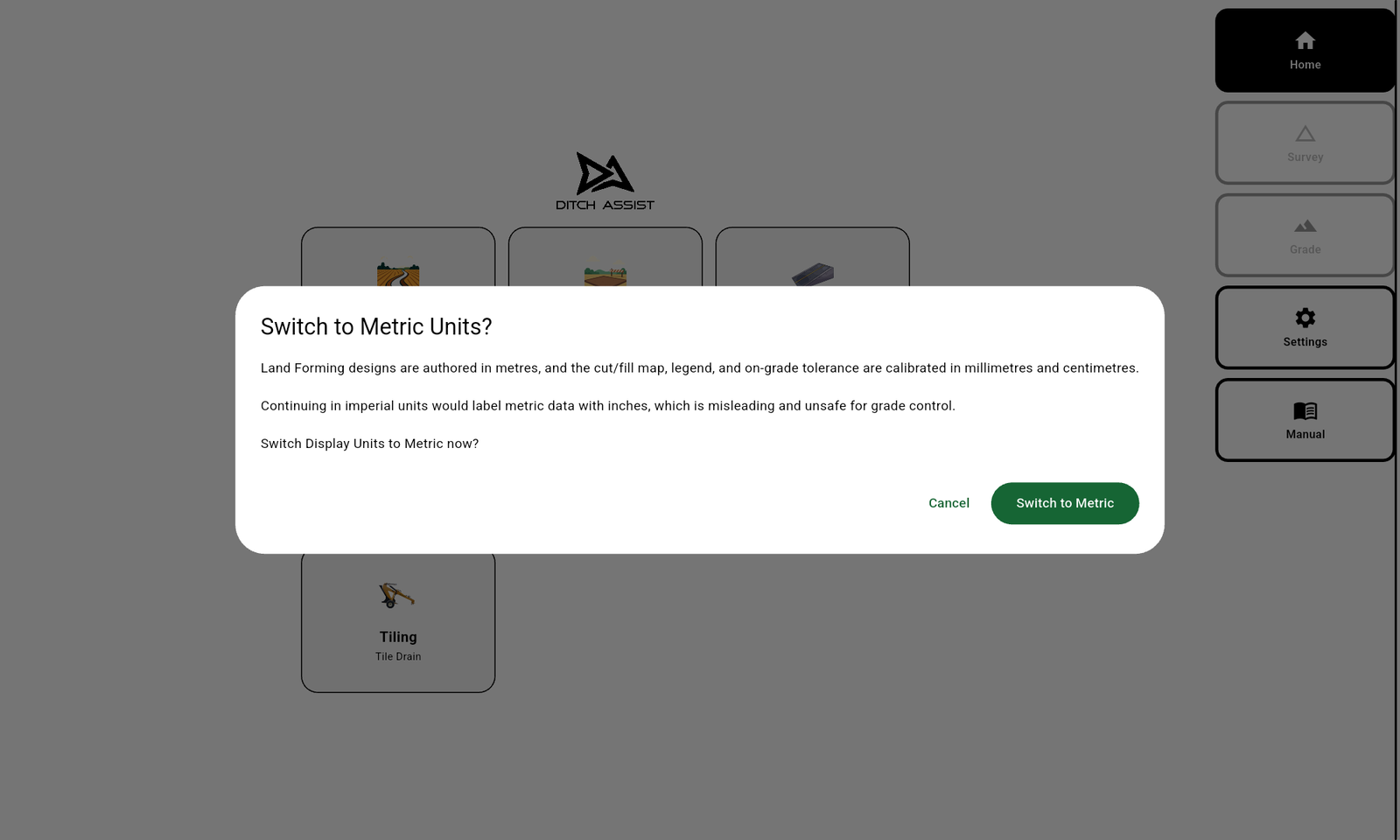
- On the Home screen, tap the Land Forming card. The Forming wizard appears with up to five options: Import LandXML (where available — build-flavor gated), Import XYZP File, Import AGD File, Survey Field (record a whole-field elevation survey on the spot), or Resume Job (continue a saved forming job). If your unit setting is Imperial, the app warns about switching to Metric first because Forming designs are authored in metres.
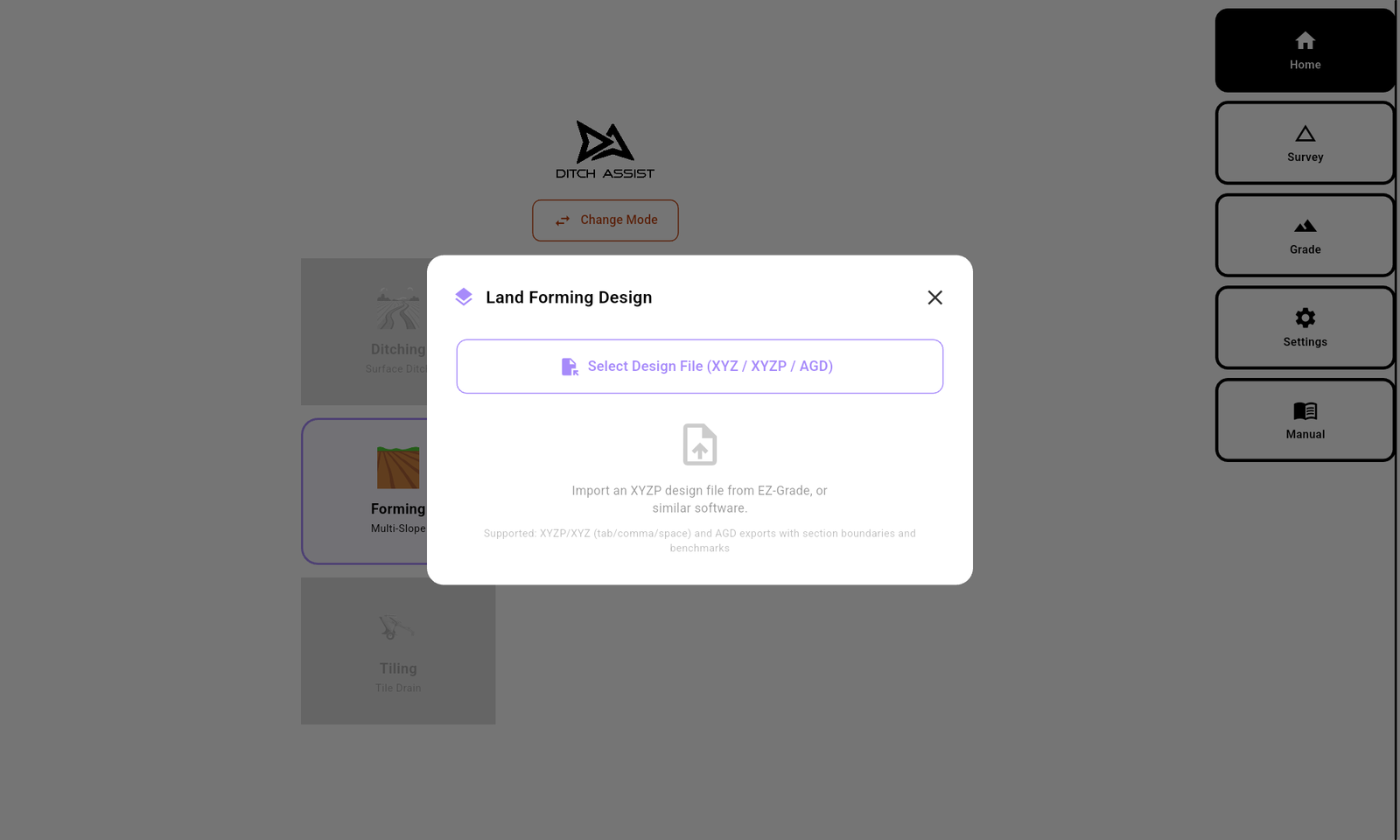
- Tap Import XYZP File or Import AGD File. The Land Forming Design dialog opens — tap Select Design File (XYZ / XYZP / AGD) and the file picker opens; browse to your file and pick it. (LandXML is a separate wizard button, Import LandXML, which opens the Import LandXML Surface dialog — its picker accepts only
.xmlfiles, so a LandXML file can't be picked from the XYZP/AGD path.)
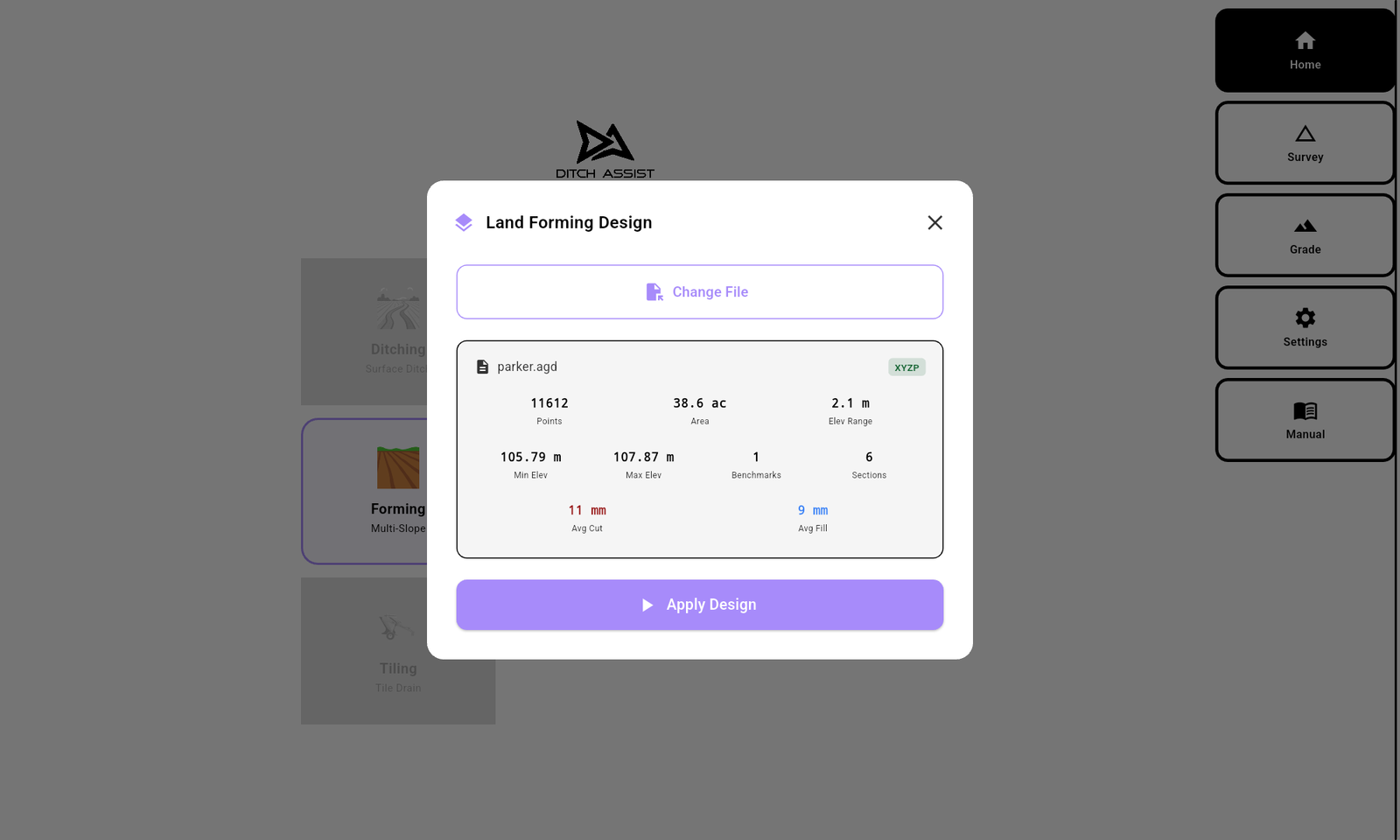
- The Forming Design dialog shows the file's stats: point count, area, elevation range, average cut and fill (XYZP only), and badges for imported benchmarks and section boundaries (AGD only). Review and tap Apply Design.
Wait for the DEM to build. A progress ring shows the percent. Big designs (20,000+ points) can take a couple of minutes. Don't close the app.
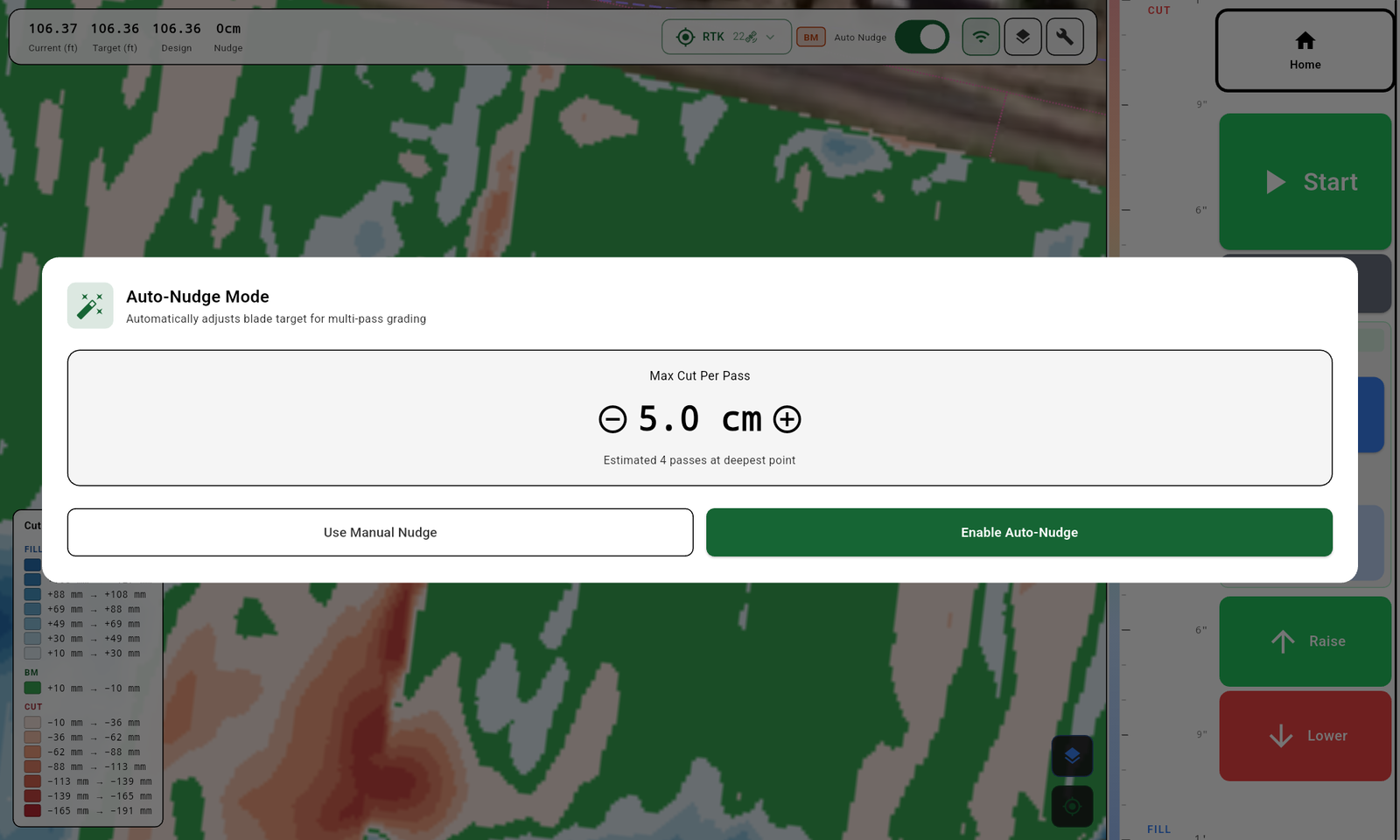
The Grade screen opens with the field surface drawn underneath as a cut/fill heatmap. Drive to a benchmark (AGD) or to a zero-cut spot (XYZP), tap the BM badge, calibrate. Tap Start to begin grading.



If your job is one you already started, tap Resume Job instead in step 1 — the saved job loads with all your coverage and graded terrain history intact.
Did this answer your question?
Thanks. That tells us which pages to improve.
Still stuck? Talk to a product specialist. 1-833-DITCH-AS · support@ditchassist.com · Monday to Friday, 8 a.m.–5 p.m. Central.
Calling about a problem? Send your app logs first so support can see what happened.