Quick start
Simple Grading chapter of the Ditch Assist app manual. The same text is in the app under Manual.
In the app Manual › Simple Grading › Quick start
With a survey:
- Tap the Simple Grading card on the Home screen.
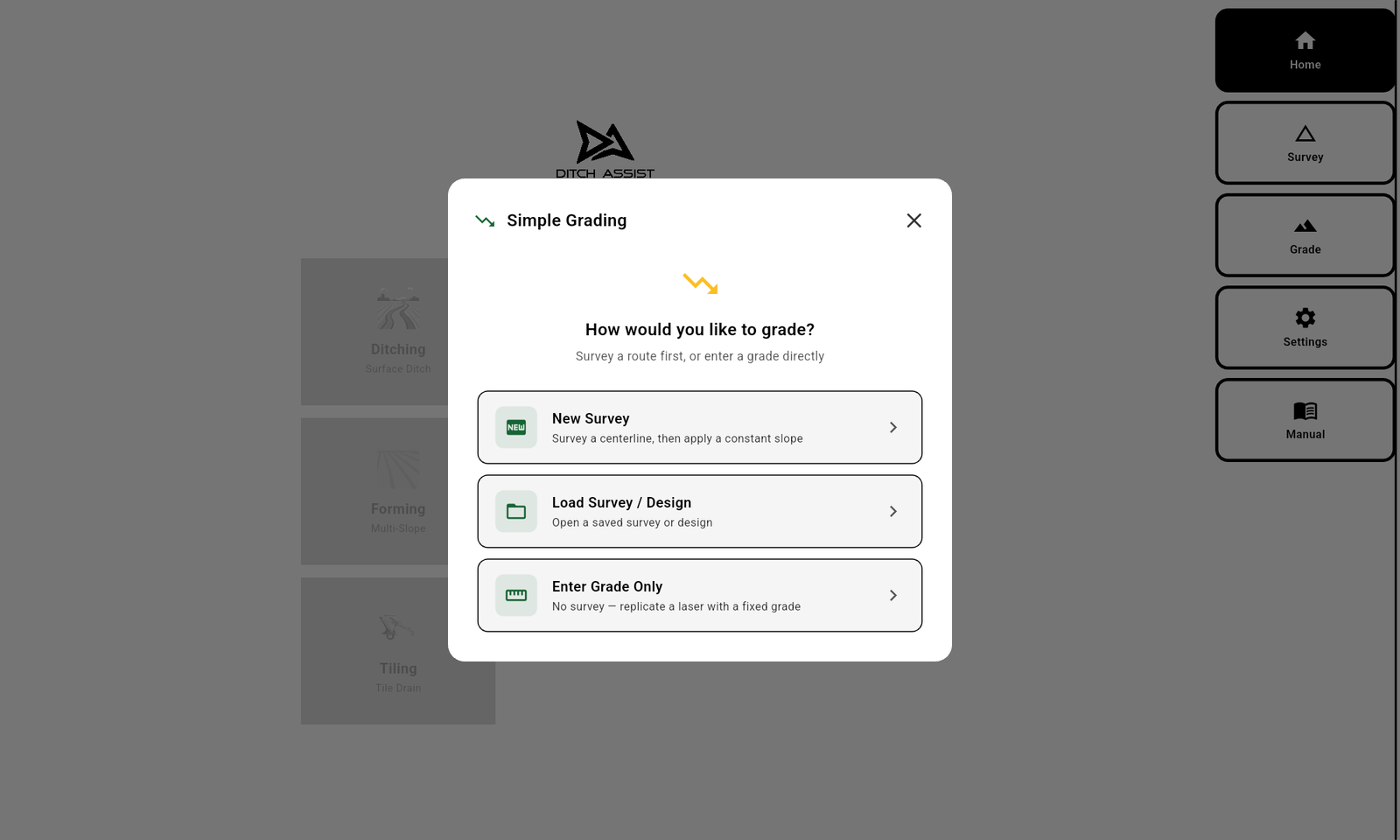
- The wizard asks how to grade. Tap New Survey to record one, or Load Survey/Design to use an existing file.
- Survey the route end-to-end (skip if loading), then save.
- The Simple Grade dialog opens. Set the Grade % and pick Direction (Down or Up). Adjust Depth Offset if you want to raise or lower the entire plane.


- Tap Apply Design.
- Calibrate the benchmark if prompted.
- Tap Start in the sidebar. Grade.


Without a survey (Enter Grade Only — Manual Grade):
- Tap the Simple Grading card.
- Tap Enter Grade Only in the wizard. The app jumps straight to the Grade tab in Manual Grade mode — the Simple Grade design dialog is not used.
- The Grade screen opens with an inline Set Grade bar across the bottom of the map. Type your target grade (for example
0.30), pick Downhill or Uphill, optionally enter a Depth Offset (inches, or cm in metric) to cut below the anchored reference, and tap the green Set Grade button. 0% is allowed for a level pad. - Drive to the start point and lower the blade onto the ground.
- Tap Start in the sidebar.
- A Ready to Start? confirmation dialog appears showing your grade and direction. Tap START — the app locks your current GPS position as the 0+00 reference and begins grading from there.
The sidebar in this flow shows a Change Grade button (not the Simple Grade design chart). Tapping Change Grade halts the controller and closes the current segment; the inline Set Grade bar stays on screen pre-filled with the prior values — edit them, tap Apply, then tap Start (which shows the Ready to Start? dialog again to anchor the new leg's 0+00).
Did this answer your question?
Thanks. That tells us which pages to improve.
Still stuck? Talk to a product specialist. 1-833-DITCH-AS · support@ditchassist.com · Monday to Friday, 8 a.m.–5 p.m. Central.
Calling about a problem? Send your app logs first so support can see what happened.