Getting Started
Chapter of the Ditch Assist app manual. The same text is in the app under Manual.
In the app Manual › Getting Started
Welcome to Ditch Assist. This manual is organized by mode — find the workflow you are running, read that section start to finish, and you have everything you need.
The 8 modes:
- Ditching — survey a drainage ditch, then either let Slope-IQ design the cut automatically (for a scraper, ditcher, rotary ditcher, or pull dozer), or fully customize the design yourself by picking control points (Guided) or placing free-form vertices (Freeform).
- Simple Grading — apply a constant slope across a surveyed line, or just enter a grade and a reference point and start working — no survey needed.
- Manual Grade — type a single percent grade, anchor at your current GPS, and grade with no survey and no design file. Reached through Simple Grading → Enter Grade Only and the Excavator manual-grade sub-flow. Supports multi-segment runs via Change Grade. See Manual Grade for the full chapter.
- Land Forming — import a 3D design from your drainage software and grade to the surface.
- Tiling — design a tile drainage line that stays inside your depth window. The Tiling card opens with a Tiling Method choice: Standard Tiling (straight-line survey, covered in the Tiling chapter) or Contour Tiling (survey the tile line along an auto-highlighted contour — see the Contour Tiling chapter).
- Terracing — choose Simple Maintenance first for a single channel survey whose berm target copies the channel design at an adjustable offset (18" default). Standard Terracing retains the two-survey soil-balance workflow, and Contour-Guided Terracing adds contour-assisted layout where available.
- Excavator — visual chevron guidance for a single-pass dig, intended for use with the Ditch Assist DIG system.
- Leveling — grade a flat pad to a single fixed elevation.
Two additional workflows sit alongside the eight grading modes — they're separate cards on the Home screen, not grading modes:
- Levee & Contour — contour-follow steering and AB-line guidance from an imported or LiDAR-derived DEM. No automatic blade control; the lightbar steers the operator.
- LiDAR & Mapping — while the tablet has internet, draw a rough field boundary once and choose what to prepare: cache satellite imagery, save a raw LiDAR DEM for offline contour generation, generate flow/depression mapping products, or run all selected products together. Coverage is US-wide via 3DEP and most of Canada via HRDEM.
No hydraulic control module on the machine? Ditch Assist Lite runs the same app as guidance only, from an Emlid Reach RS3 / RS4 receiver — you move the blade, the app shows you where. Choose it in Settings → Mode; see the Ditch Assist Lite chapter.
If you are new to Ditch Assist, the rest of this section gets you launched, connected, and into your first mode. Every mode chapter then assumes nothing — it walks you through that mode from cold start to finished job.
First launch — granting storage permission
The very first time you open Ditch Assist, Android prompts for storage permission. The app needs it to open at all — grant All Files Access so the app can save your work under Documents/DitchAssist/ where you can find your jobs from any file manager. Once you accept, the home screen appears.
The LiDAR & Mapping prep screen can also ask Android for location permission. That permission is only used to pan the prep map near the tablet's current location so you can find nearby fields faster; the app can still run if you pan the map by hand.
Launching the app
Tap the Ditch Assist icon. The app opens in landscape and you see two screens before the home screen:
- Operator's Manual reminder — a blue screen telling you to read this manual. Tap I Agree to Read the Manual Before Use.
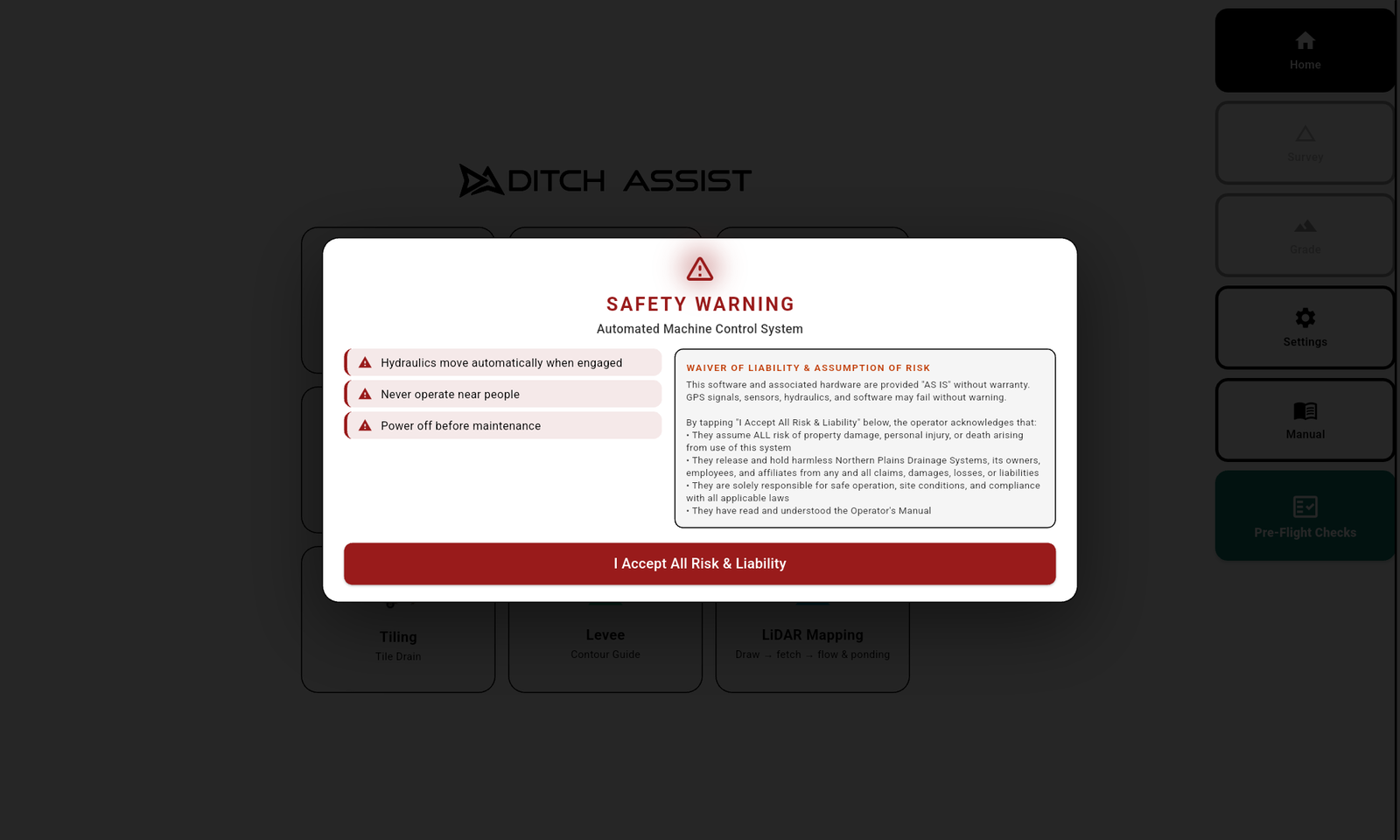
- Safety warning — a red screen reminding you that hydraulics move automatically once grading starts. Read it, then tap I Accept All Risk & Liability.
If your blade height has not been set yet, you also see a Blade Height prompt. You can enter the height by hand, use Auto Measure to capture it from the implement, or Skip for Now and set it later in Settings. Blade height matters when you record a survey in Ditch Assist and then grade against the design built from that same survey — that math depends on knowing the antenna-to-cutting-edge distance. If you are grading an imported design (Forming, Tiling AGD) and your benchmark calibration is correct, blade height is not part of the math.
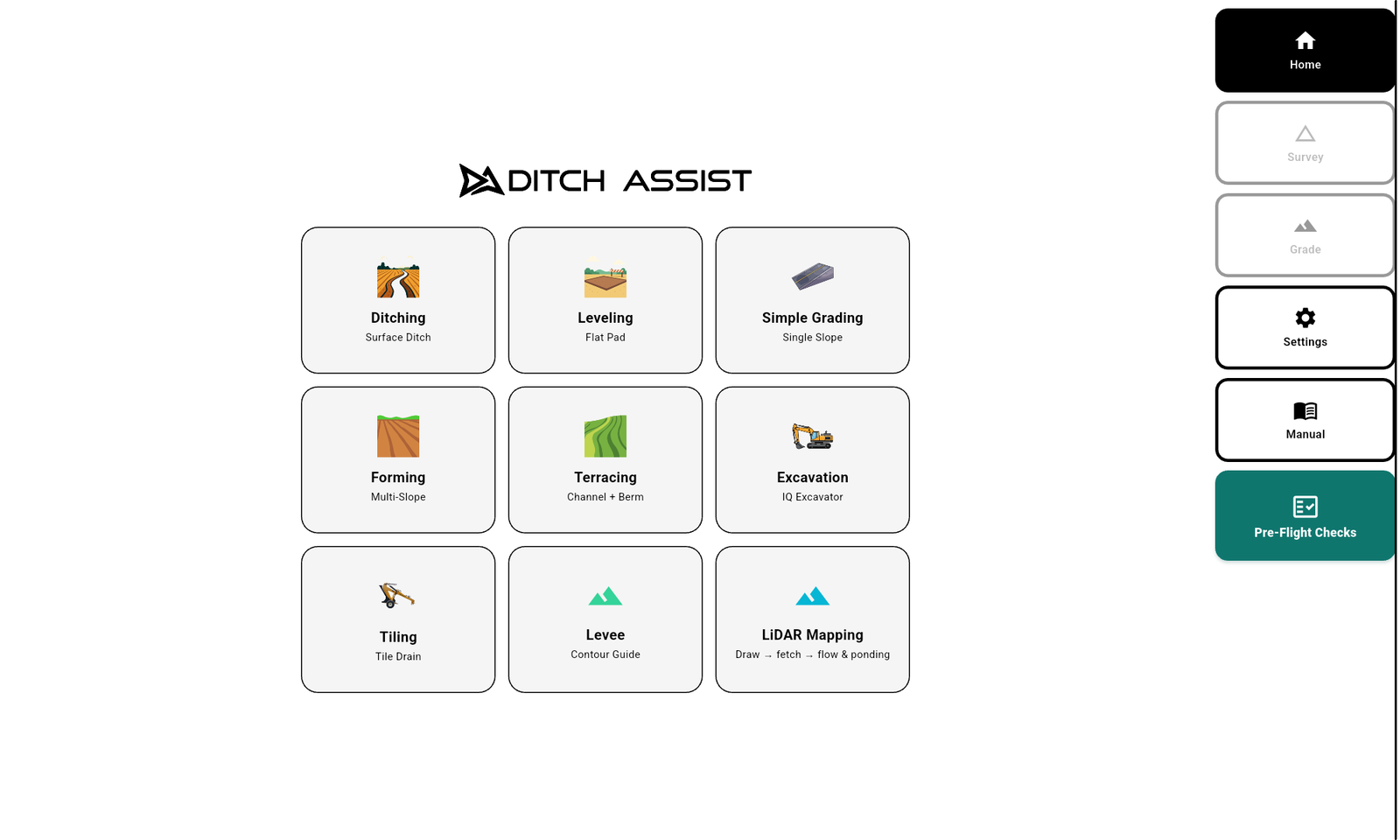
After the warnings, the Home screen appears with a grid of mode cards.
Picking a mode
The Home screen shows the workflow cards. Tap a card to start that mode's setup wizard. The card you picked stays in color; the others dim out so you know which mode is active. The sidebar's Survey and Grade tabs become available.
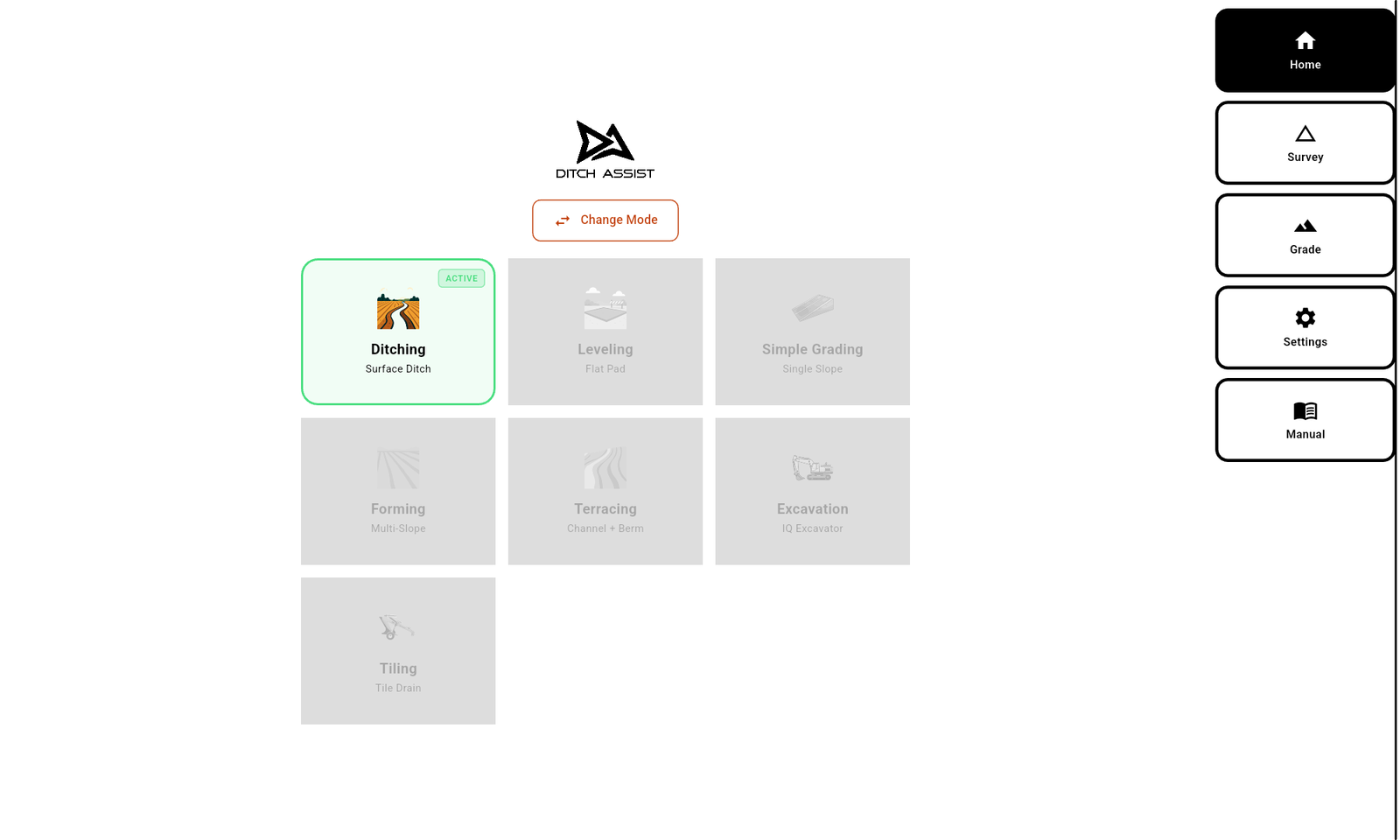
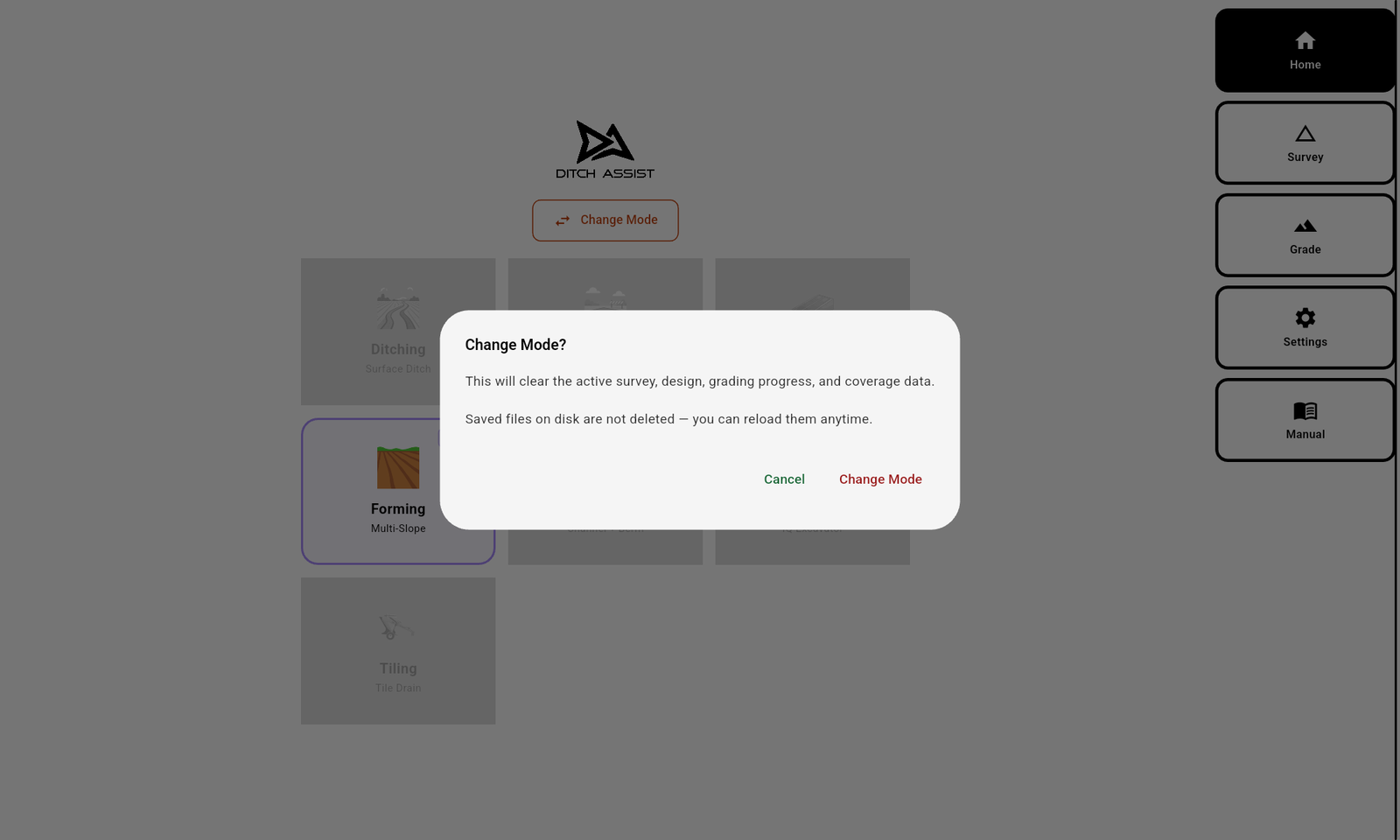
To switch to a different mode at any time, tap Change Mode on the Home screen. This clears the current survey, design, grading job, nudge offset, coverage, and track. It does not delete saved files — only the active session state.
Connecting to the controller
The control module on the machine is what raises and lowers the blade. The tablet talks to it over Wi-Fi. The setup wizard inside each mode handles the in-app side of the connection for you, but you do need to bring the tablet onto the controller's Wi-Fi network first:
- Open the tablet's Wi-Fi settings and join the controller's wireless network. The Wi-Fi password is 12345678.
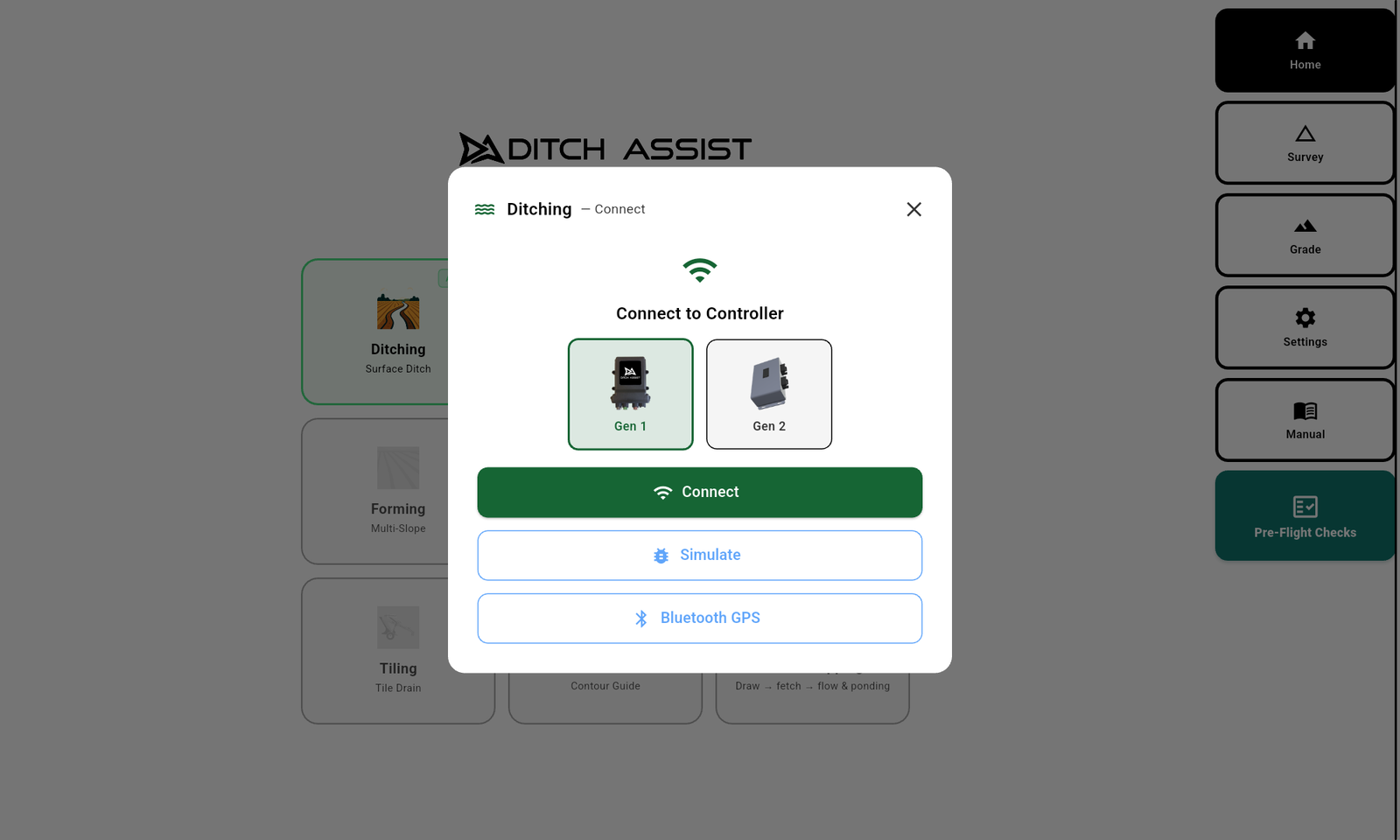
- Come back to Ditch Assist and tap a workflow card (or Pre-Flight Checks → Connect / Change). The wizard's connect step shows a single Connect button. Tap it and the app auto-detects which Ditch Assist module is reachable — it probes the control module and DIG endpoints (about 1.5 seconds each), trying first the module that matches the Wi-Fi network the tablet is on, and shows Detecting connected module... while it works. The controller status badge in the stats bar turns green once the connection lands.
- If auto-detect picks the wrong module or fails, tap Manual Options below the Connect button to reveal the control module and DIG cards and pick one directly. On failure the wizard shows Could not detect a Ditch Assist module. Connect tablet WiFi to the module and try again. — check the tablet's Wi-Fi and retry. Simulate and Bluetooth GPS buttons sit below Connect in the workflow wizard; the Pre-Flight Checks connect dialog uses the same auto-detect Connect button (without Simulate / Bluetooth).
- A short system check runs and shows three indicators:
- Controller Connected — green when the controller answers.
- GPS Signal — green when GPS positions are arriving and changing. Yellow warning when positions are stuck (a fix is present but the position hasn't updated, within a 10 s grace window). Red fail when there's no fix and more than 10 s have elapsed since diagnostics opened.
- GPS Accuracy — green at RTK Fixed, yellow at RTK Float. Only RTK Fixed is endorsed for survey and grading; yellow means wait for the fix to converge — working on Float is at your own risk.
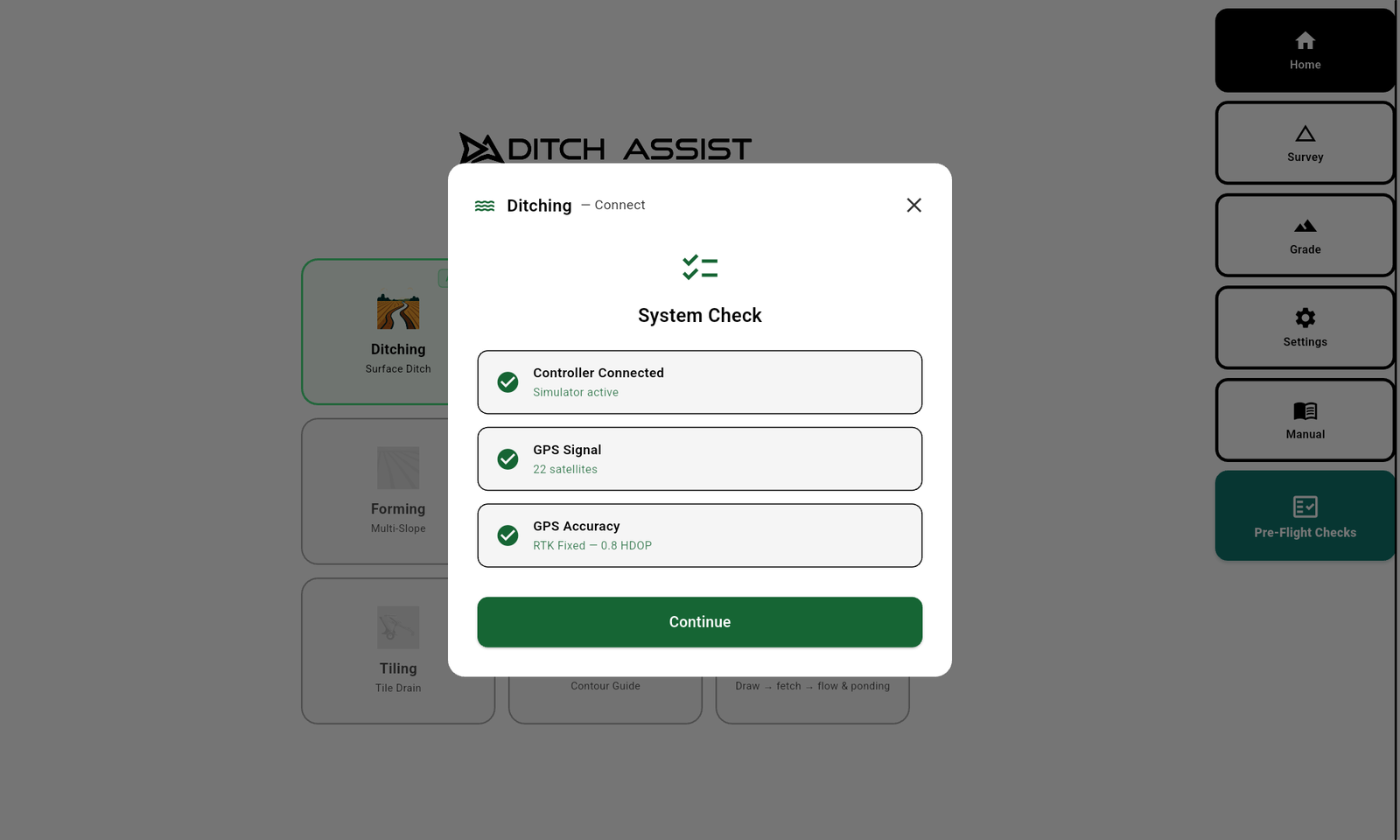
When all three are green, tap Continue to move on to the survey or design step.
Pre-Flight Checks on Home
Before picking a workflow, tap the prominent orange Pre-Flight Checks button at the bottom of the main-menu sidebar (visible from the Home, Settings, and Manual screens) to verify the machine. The popover shows controller connection, GPS fix, satellites, HDOP/PDOP, correction age, update age / rate, and full-precision latitude, longitude, and elevation. Green checks mean ready; yellow warnings need attention; red X means do not grade. The panel stays open until you tap its X — tapping elsewhere on the screen does not close it, so a stray touch cannot hide it while you are testing.
Use Connect / Change to pick the controller source and Disconnect to cleanly release it, including the simulator. On Ditch Assist control modules, the popover also shows large hold-to-move Raise and Lower test buttons. Hold a button to energize that valve; release to stop. If Raise lowers the implement, or Lower raises it, reverse the valve connectors before grading. DIG, Bluetooth GNSS, and simulator sources do not show hydraulic test buttons because they do not command valves.

GPS Stale ladder
Stale GPS means the app is receiving no fresh position movement or no fresh GNSS update inside the configured timeout. Auto-grading holds when GPS is stale or RTK quality is not acceptable. This is separate from controller-data loss: if the controller itself stops sending parseable data, the app reports controller connection loss and the reconnect / disconnect path may follow. DIG modules retry every 2 seconds in the background and reconnect automatically when the module returns. A red floating SnackBar reports a real controller-data disconnect when it happens.
Wi-Fi roam detection
Beyond the 10-second data watchdog, the app listens for OS-level Wi-Fi changes — if your tablet hops to a different network (e.g. auto-rejoining home Wi-Fi or a hotspot), the connection is torn down within about one second. To stay on the controller's SSID, turn off auto-switching in Android Wi-Fi settings for the duration of the job.
If you don't see a feature
Some features depend on the Mode at the top of Settings — Ditch Assist Lite hides every hydraulic control and the controller settings, though every workflow still works in it (see the Ditch Assist Lite chapter). If a feature documented here still doesn't appear on your tablet, check that you are on the current version (below), then contact support.
Where to find the version
Look at the bottom of the Home screen — the build version and date are shown there. The same details live in Settings → ABOUT → Version, along with Privacy Policy and Reset Startup Warnings.
Tablet basics
The app is built for landscape on a tablet mounted in the cab. The sidebar on the left changes based on which tab is open. All sidebar buttons are sized for gloves. Tap-and-hold targets are uncommon — if a control needs holding, the manual mentions it.
Main menu sidebar (Home / Settings / Manual screens):
- Home — go back to the workflow card grid.
- Survey — open the Survey screen for the active workflow. Greyed if no workflow picked.
- Grade — open the Grade screen for the active workflow. Greyed if no workflow picked.
- Settings — every adjustable option, grouped.
- Manual — this manual.
- Pre-Flight Checks — prominent orange button at the bottom of the main-menu sidebar, below Manual. Opens the Pre-Flight Checks popover described earlier in this chapter. Available anywhere the main-menu sidebar is visible (Home, Settings, Manual).
Survey sidebar (while in a Survey screen):
- Start / Stop — begin or finish a recording. Stop opens the save dialog.
- IQ Survey / Field Survey — pick the readiness style. IQ Survey shows the guided overlay; Field Survey skips it.
- Slope-IQ / Tile Design / Grade Design — open the design dialog appropriate to the active workflow. Greyed until enough survey points exist.
- Reset — clear the in-memory survey points. Confirms first.
- Load — open the file picker to load a saved survey or design.
Grade sidebar (while in a Grade screen):
- Start — engage auto-grading. Sends commands to the controller. The hydraulics will move on their own. Replaced by Stop while running. Start is GPS-gated: tapping it with no valid GPS fix shows a red SnackBar No GPS fix, and with a stale GPS feed (no data inside the GPS Stale timeout, default 5 s) shows GPS: STALE — position not updating — in both cases auto-grading does not start. The simulator is exempt.
- Stop — disengage auto-grading. Halts the controller. Always works, even with no GPS.
- Hold — pause commands without exiting. Manual valve control resumes; the chevrons keep updating. Replaced by Resume while held.
- Resume — re-engage commands after a Hold.
- Nudge Up / Nudge Down — temporary depth offset. Default ±2″ per tap; configurable in Settings → GRADING. Effectively unlimited range (±999″), so nudge can serve as a progressive depth offset across many passes. Reset clears it. Only visible when Auto-Nudge is off — Auto-Nudge swaps these out for Pass + / Pass −.
- Pass + / Pass − — Auto-Nudge only: bump to the next or previous staged pass. Useful if Auto-Nudge over-shaped the staging. Replaces Nudge Up / Nudge Down while Auto-Nudge is on.
- Raise / Lower — jog the implement directly while held. The valve fires for as long as the button is held.
- Channel / Berm — Terracing only. Large selector buttons switch the active target, and the active one carries an ACTIVE tag. The profile chart also shows both targets; tap near either line to select it. During automatic grading you must press HOLD yourself before the target will switch.
- Edit Design — shown at the bottom center of the profile whenever the active target was designed from a survey: Ditching/Slope-IQ, survey-based Simple Grade, Terrace (including Simple Maintenance), Tiling, and survey-designed Excavation. It reopens the appropriate designer and safely stops active grading first. Returning without changing the design preserves current progress. Saving a revision asks for confirmation, saves a new version, and clears coverage, worked profile, pass, and nudge so the revised target starts as a new job. In Simple Maintenance, the berm is regenerated from the revised channel plus the berm offset. Older saved files remain on disk.
- Reset — clear the in-memory grading job (design, nudge, coverage, pass count). Saved files on disk are not deleted.
Grade / Depth Guide
Most grading screens show a right-side guide beside the map or chart. The down-pointing triangle marks live blade or bucket elevation; the tip of the triangle is the actual elevation. The bold FINAL target line is the un-nudged design target. If manual nudge or Auto-Nudge creates a different active pass target, a separate CURRENT line appears.
The number at the bottom is the signed error in your selected units. Positive means above target / more cut needed. Negative means deeper than target / below grade. If a current target is separate from final target, tap the number to toggle between error to Current Tgt and error to Final Tgt. Tap the guide to collapse it; tap the small collapsed tab to show it again.

WiFi badge in the top stats bar — when connected or simulating, tap to see connection details and a Disconnect button. When disconnected, tap and a SnackBar tells you to Tap a workflow card on the Home screen to connect. The badge no longer opens an IP/port entry dialog — that was a back door around workflow gating and has been removed.
Did this answer your question?
Thanks. That tells us which pages to improve.
Still stuck? Talk to a product specialist. 1-833-DITCH-AS · support@ditchassist.com · Monday to Friday, 8 a.m.–5 p.m. Central.
Calling about a problem? Send your app logs first so support can see what happened.