Tiling
Chapter of the Ditch Assist app manual. The same text is in the app under Manual.
In the app Manual › Tiling
What this mode is for
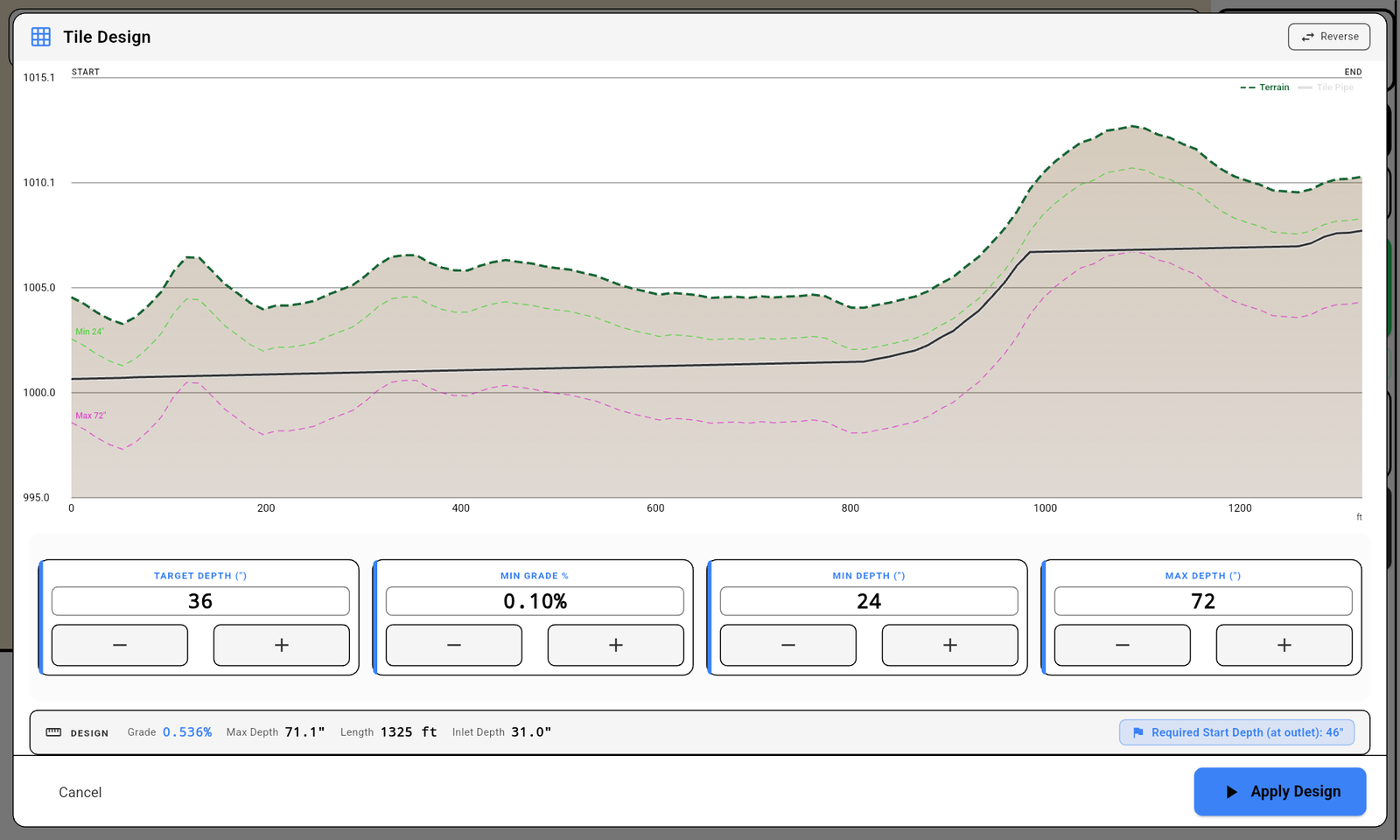
Tiling designs and grades the trench for a tile drainage line. The design line represents the tile pipe itself — the app keeps it inside a depth window (you set min and max depth below the surface) and at or above your minimum drainage grade. The blade follows the design while you trench.
Use Tiling when:
- You are installing tile (perforated drainage pipe) and need a depth-constrained best-fit.
- You need to stay above the frost line / minimum burial depth.
- You can't go deeper than your equipment allows.
Chart cue: the proposed tile line on the design chart renders as black to match how operators visualize a pipe.
Workflow at a glance:
- Connect to the controller.
- Survey the tile route, or load one.
- Open the Tiling design dialog. Set Target Depth, Min Depth, Max Depth, Min Grade.
- Tap Apply Design.
- Calibrate the BM if prompted.
- Tap Start. Grade from the outlet uphill (recommended), watching the blade hold the tile depth.

In this chapter
Did this answer your question?
Thanks. That tells us which pages to improve.
Still stuck? Talk to a product specialist. 1-833-DITCH-AS · support@ditchassist.com · Monday to Friday, 8 a.m.–5 p.m. Central.
Calling about a problem? Send your app logs first so support can see what happened.