Quick start
Tiling chapter of the Ditch Assist app manual. The same text is in the app under Manual.
In the app Manual › Tiling › Quick start
- Tap the Tiling card on the Home screen. The wizard opens.
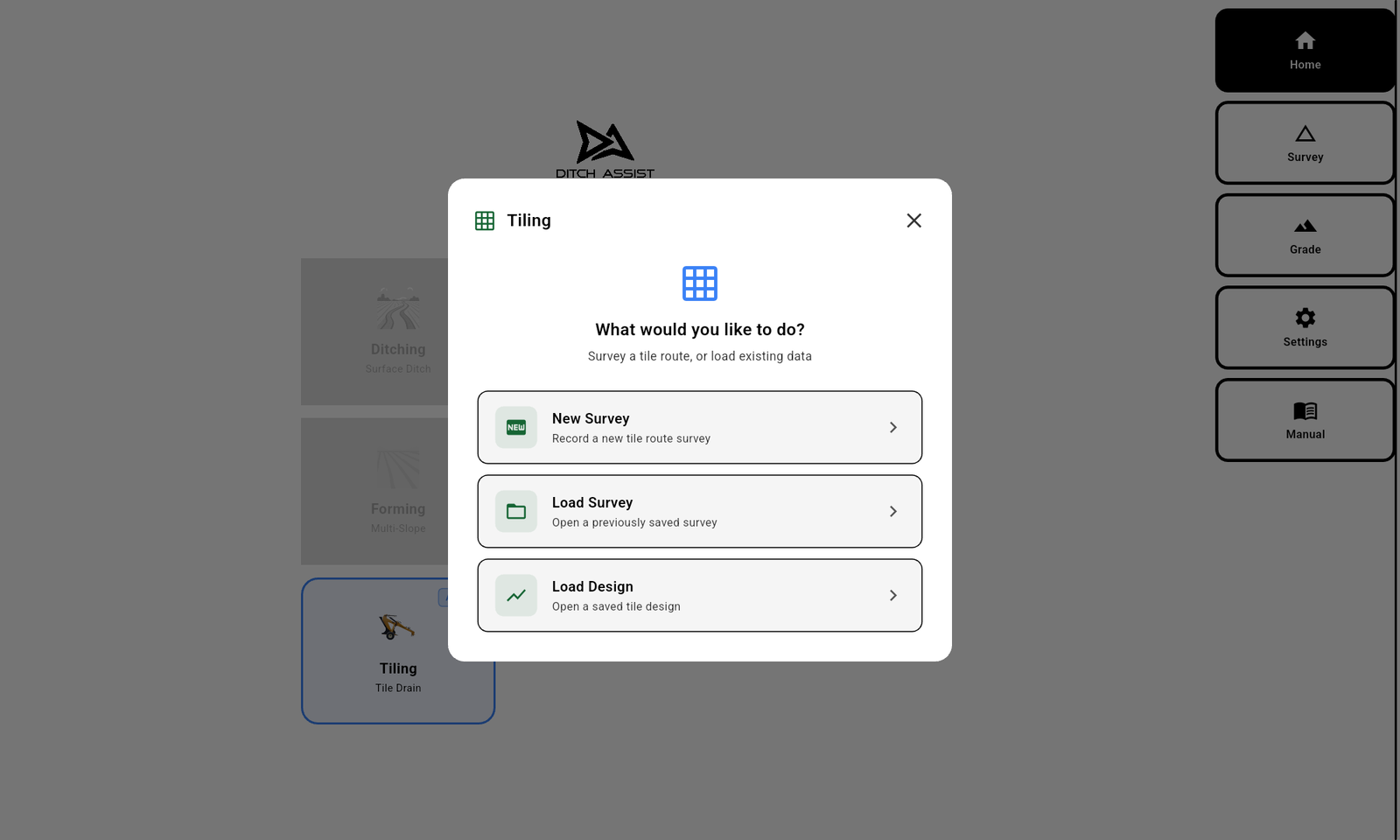
- Tap New Survey (or Load Survey to reopen an existing route, Load Design to install a saved design, or Survey Whole Field to collect topo first for designing later).
- Drive the tile route from outlet to the far end. Start at the outlet, drive the line, Stop at the inlet end. Save.
- After saving, the Water Flow Direction prompt confirms inlet vs outlet based on elevation. Tap Yes, Correct or No, Reverse It.

- The Tile Parameters mini-dialog appears. Set Target Depth and Min Grade. Tap Create Design.

- The full Tile Design dialog opens. Defaults are: Target Depth 36″, Min Depth 24″, Max Depth 72″, Min Grade 0.10%. Adjust any of these by tapping the value (numeric keypad) or using ±. Review the chart — the proposed tile line renders as a white-bordered dark line drawn thicker than the terrain line so it reads like a pipe (solid stroke, not dashed). Min Depth shows as a dashed green line; Max Depth as a dashed magenta line, and the proposed tile line should stay between them. If the tile rises above Min Depth (not enough cover), the chart shades that stretch amber; if it drops below Max Depth (too deep), it shades red. A clean design shows no shading between the two lines.
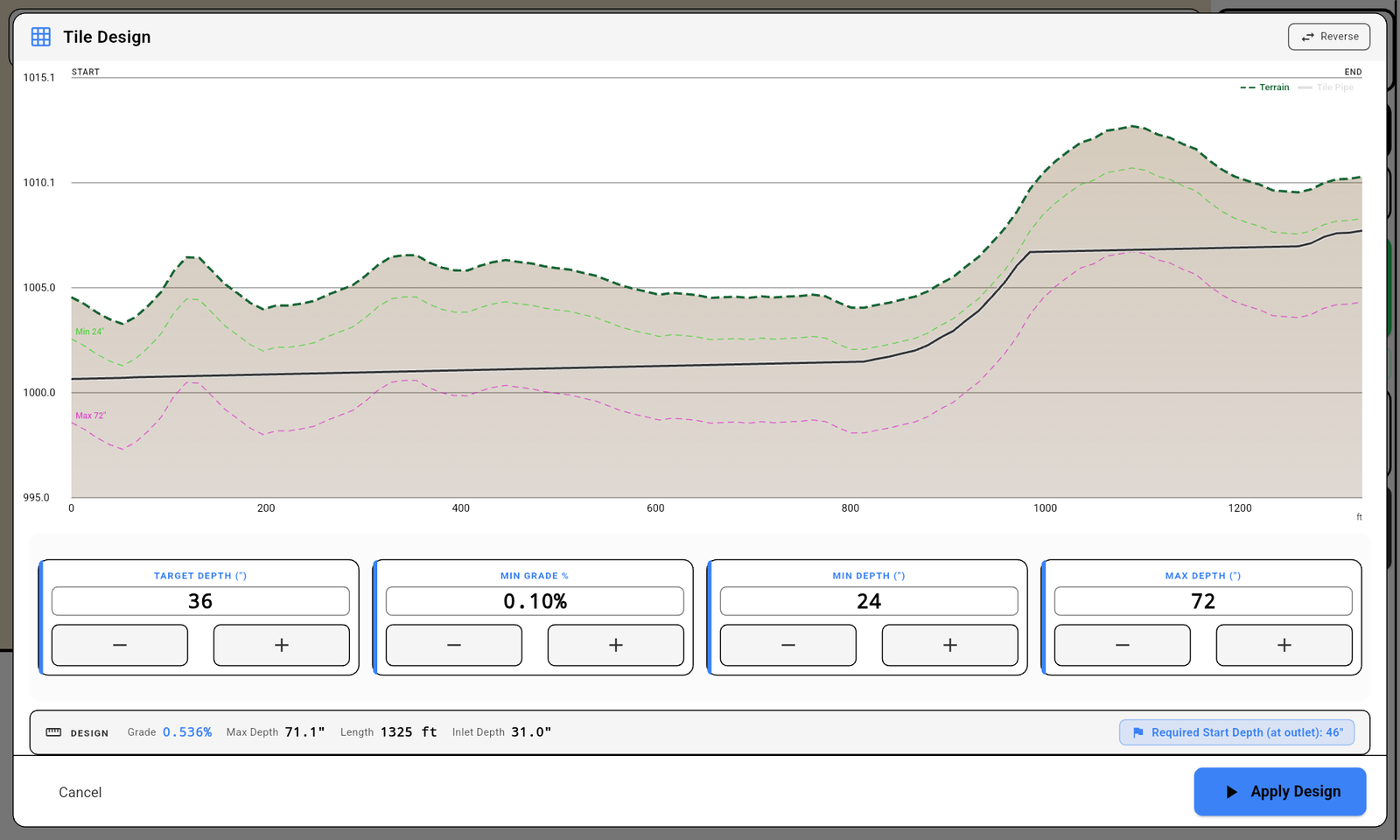
- Tap Apply Design.
- Calibrate the BM if prompted.
- Drive to the outlet end of the tile line. Lower the trencher / plow / chain trencher / wheel ditcher to the ground. Tap Start. Drive uphill. The blade follows the tile depth.

Did this answer your question?
Thanks. That tells us which pages to improve.
Still stuck? Talk to a product specialist. 1-833-DITCH-AS · support@ditchassist.com · Monday to Friday, 8 a.m.–5 p.m. Central.
Calling about a problem? Send your app logs first so support can see what happened.