Leveling
Chapter of the Ditch Assist app manual. The same text is in the app under Manual.
In the app Manual › Leveling
What this mode is for
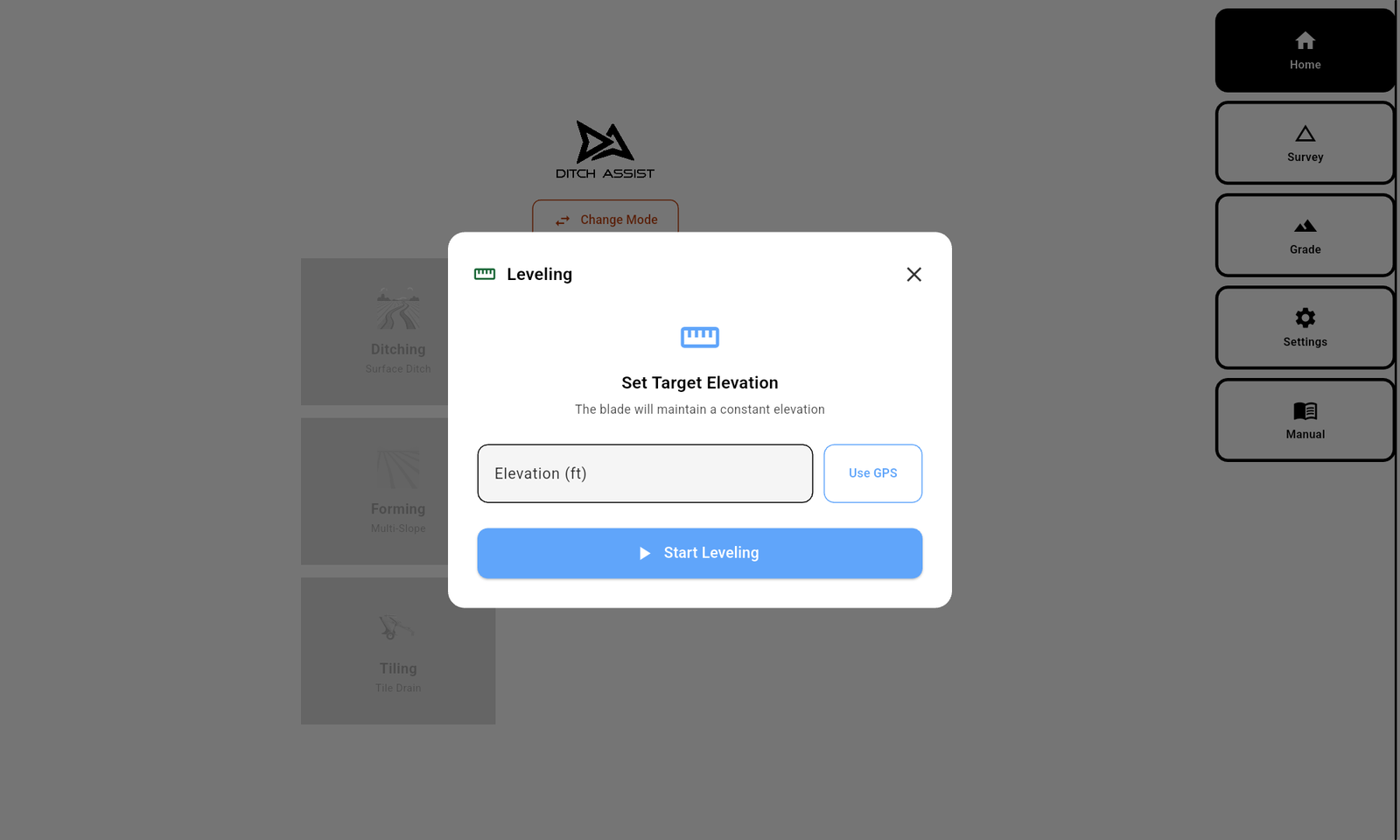
Leveling grades a flat pad to a single fixed target elevation. There is no slope, no design, no survey. You enter one number — the target elevation — and the blade holds that elevation everywhere. Use Leveling for:
- Building pads (machine sheds, shop floors, equipment yards).
- Equipment storage areas.
- Any flat surface that has to be at a specific elevation (not just locally flat).
This is the simplest mode in the app. The other modes have designs and chevrons; Leveling has a single target line.
Workflow at a glance:
- Tap the Leveling card and connect in the wizard (auto-detect Connect, Simulate, Bluetooth GPS, or Manual Options).
- The Grade screen opens directly in Leveling mode with an input bar across the bottom of the map.
- Set the target in the bar: type it and tap the green Set Target, or tap the blue Use Current (current GPS elevation with the BM offset applied), or type a depth in Depth Below Bucket and tap the orange Dig This Deep.
- Tap Start in the sidebar.
- Drive the pad area, raising and lowering as the chevrons direct.
In this chapter
Did this answer your question?
Thanks. That tells us which pages to improve.
Still stuck? Talk to a product specialist. 1-833-DITCH-AS · support@ditchassist.com · Monday to Friday, 8 a.m.–5 p.m. Central.
Calling about a problem? Send your app logs first so support can see what happened.